Uniform settings on hundreds of devices: the BHS Trans example and enforced enrollment in the Enterprise licence
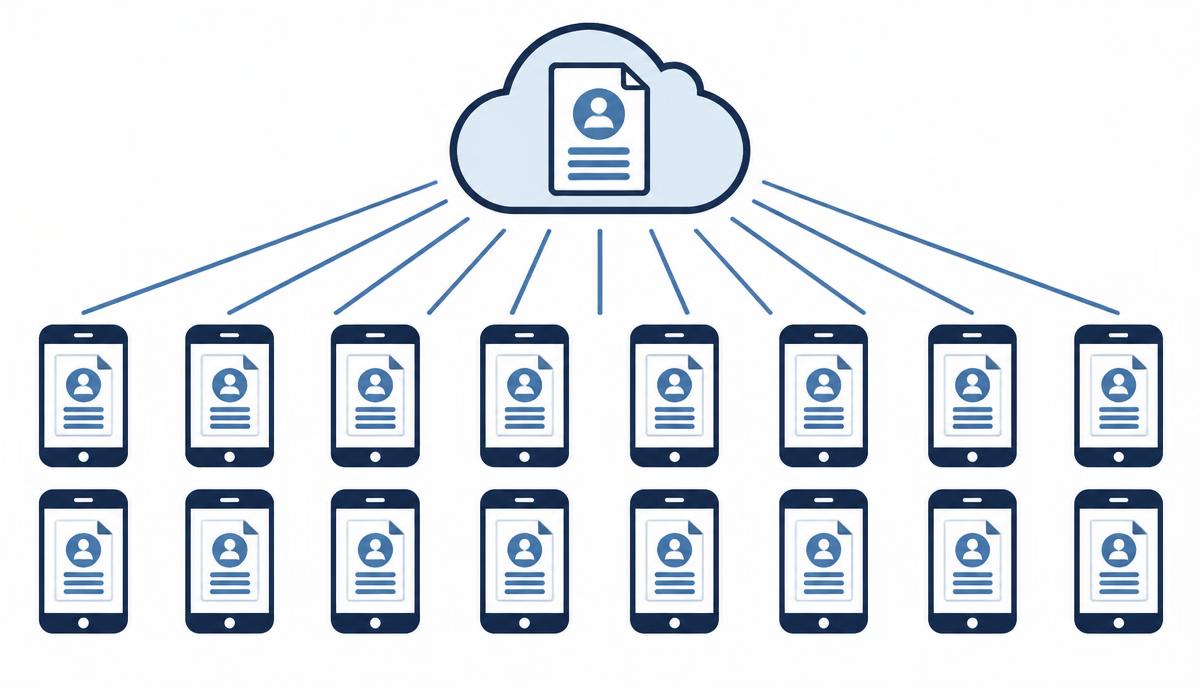
When every device is configured differently, every change means 400 times the work – the BHS Trans example shows why a uniform baseline is the goal.
A case study published on the sofortelefon.hu blog describes the driver-phone fleet of BHS Trans Kft. The solution described there is Sofortelefon.hu's remote device management system, not a Knox licence. Still, the experience is useful for anyone about to buy or tidy up several hundred Galaxy devices and weighing what they need from the Samsung Knox Suite – Enterprise Plan.
The hidden cost of manual setup
According to the source, more than 400 driver phones were in use in the BHS Trans fleet, practically each configured differently. This was not the result of a bad decision: phones arrived gradually – a new driver, a broken device, a new client requirement – and someone always set them up by hand, not always the same colleague and not always with the same steps.
Individually the differences are trivial: a different wallpaper, a different app layout, different permissions. Together they make a fleet impossible to follow. The cost shows up when something needs to change: in a manual setup, a new app or security parameter means going through 400 devices one by one – if they are reachable and not at the other end of Europe.
Three requirements, one platform
The company defined three needs: uniform, easily changeable settings; phone restrictions and kiosk mode so the device can only be used for work; and corporate branding with logo and wallpaper. The solution handles all three centrally: every phone receives the same configuration, changes are made in one place and take effect across the fleet.
One of the case study's key points is that when something is wrong on a phone, the fault no longer stems from 400 possible configurations but from a known baseline. Troubleshooting becomes routine.
What did the numbers show?
According to the source, 90% of driver-phone tasks were automated and one full employee's time was freed up. The case study's summary reads:
„90% of driver-phone tasks were automated, one full employee's time was freed up, and errors and communication outages related to running out of mobile data or misconfigured phones were eliminated.”
A uniform baseline in Knox Suite
In a situation like this, the Knox Suite – Enterprise Plan provides tools on several layers. The foundation is a central Knox Manage profile: apps, permissions, restrictions and kiosk view defined in one place and deployed to the fleet. A change is made once, and devices pick it up at their next sync.
The second layer is how a device reaches that state. With Knox Mobile Enrollment, Galaxy devices uploaded by the reseller enroll into the company EMM automatically at first power-on and receive the profile. No manual registration, no "someone will set it up later" step.
What do KME Advanced settings add?
Standard enrollment works well when the user completes the first-start flow. The Advanced settings available in the Enterprise Plan enforce it: if a device does not register with the EMM within the defined time, it locks automatically (checked daily). Admins can lock and unlock devices in bulk, provide a one-time PIN for offline situations and install apps during enrollment.
We do not attribute this to the BHS Trans case; we describe it as a general option: on a fleet of several hundred devices with constant replacements, this is how you make sure no device is left unmanaged.
What about branding?
Device branding at first power-on – logo, wallpaper, boot screen – falls under Knox Configure, a separately licensed product that is not part of any Knox Suite plan. Some wallpaper settings can be applied from Knox Manage, but for deeper branding we provide a separate quote.
Rollout steps on a large fleet
- Inventory: models, Android versions, current settings and apps.
- Target state: one profile (or a few per role) – apps, restrictions, kiosk view.
- Licence: choose the plan and licence count, run a trial on a small group.
- Enrollment: reseller upload to Knox Mobile Enrollment, with Advanced settings and a time limit where needed.
- Phased rollout: existing devices move to the new profile group by group after a factory reset.
- Operation: central changes, troubleshooting with remote support, regular reviews.
If your fleet is in a similar situation, request a licence quote – we will help define the target state and licence count.
Request a licence quote for the Knox Suite Enterprise Plan
Get in touch: our specialists help you choose the right licence and licence count, and support configuration and operation.
Request a licence quote